
Every course now has a page that reads your study plan
Every course in the BIR curriculum now has its own page. If you have saved a study plan, the page reads it and tells you where the course stands for you. The study plan service can also show what a change would do before you make it.
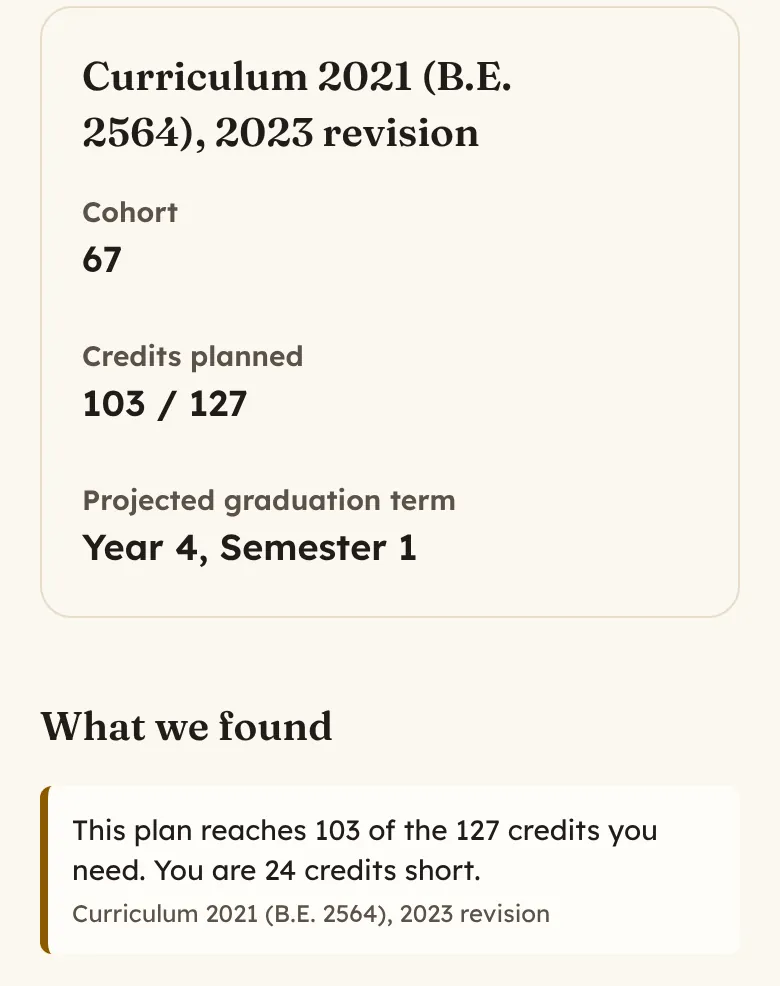
The screenshots below use an invented student from cohort 67, in Year 3, Semester 1, taking the Governance and Transnational Studies minor. This student has not yet passed PI280, so the screens show how a chain of prerequisites reaches graduation.
What is new
This update adds
- a page for every course, including general education courses such as TU105, EL105 and LAS101
- a "Your plan" panel on each course page that reads your saved study plan
- minor and plan filters, a prerequisite map and a side-by-side comparison in the course catalogue
- term-by-term tools in the study plan, covering assessment, the critical path, "If I move this later" and alternative plans
- a read-only link to share your plan with an advisor, and a button that emails the BIR office about your plan
How the pieces connect
Find a course page
Every course has a page at /student-life/course-reviews/ followed by its code, for example /student-life/course-reviews/PI380. Search the site for a code such as PI380 and you go straight to that page.
Courses outside the PI catalogue, such as TU105, EL105 and LAS101, have a page with the facts from the curriculum. The page shows the credits, prerequisites, recommended term and what the course counts towards.
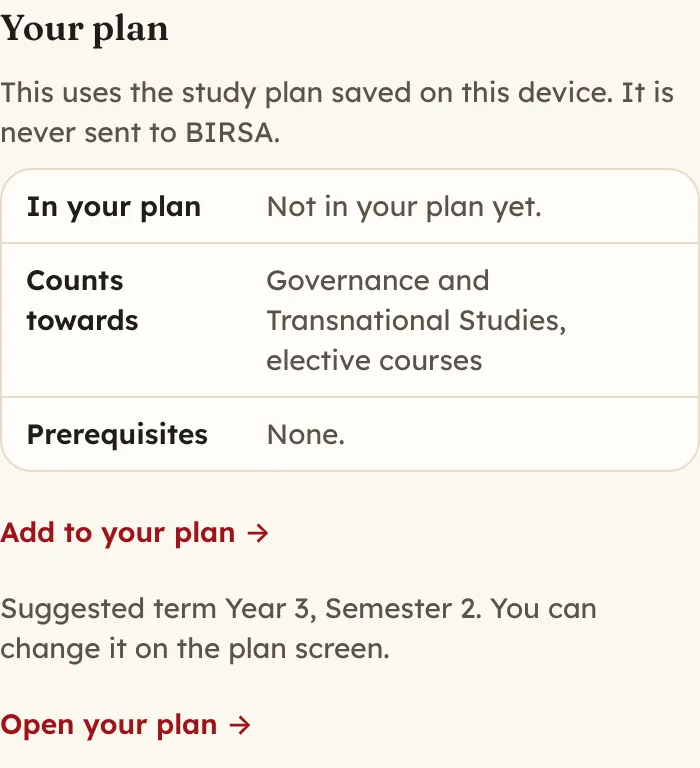
If a plan is saved in your browser, the course page shows a "Your plan" panel. It says
- whether you have passed the course or planned it
- what the course counts towards, including which part of your minor
- whether your plan meets its prerequisites
- a link to add it to your plan
- what putting it off a term does to your graduation, when the course is already in your plan
Filter the catalogue
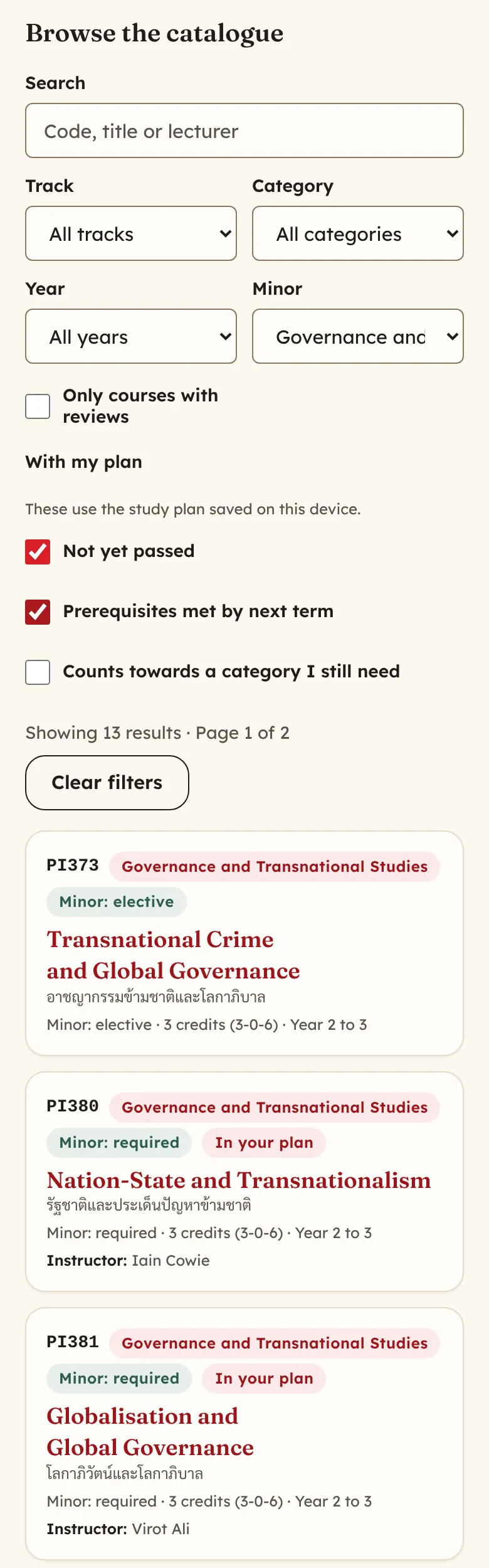
The course catalogue has four new filters. "Minor" narrows the list to one minor. Under "With my plan", "Not yet passed", "Prerequisites met by next term" and "Counts towards a category I still need" use your saved plan. The plan filters appear only when a plan is saved on the device.
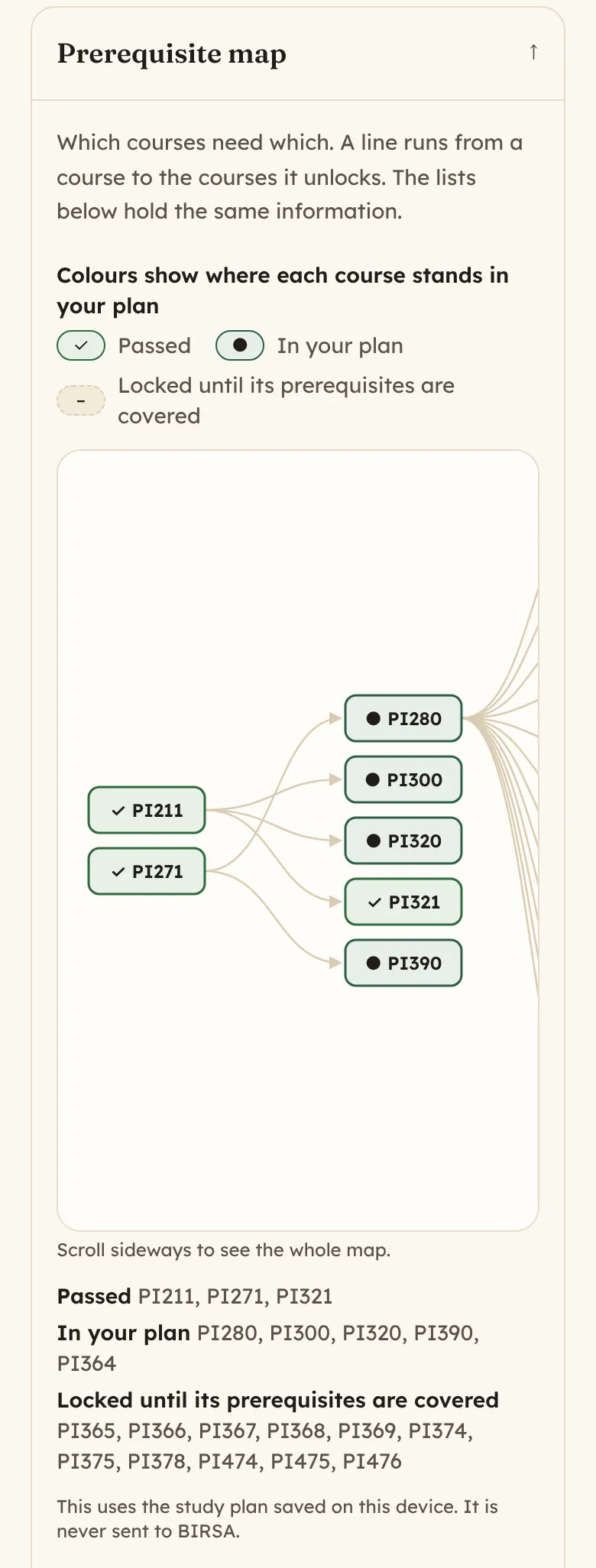
The "Prerequisite map" at the bottom of the catalogue draws which courses unlock which. With a saved plan, the colours show whether each course is passed, in your plan or still locked. The lists under "What unlocks what" hold the same information as text.
Make your study plan
The service takes about 10 minutes. Have the first two digits of your student ID ready, and your transcript if you have taken anything outside the standard plan.
- Open Plan your BIR degree and select "Start now".
- Enter the first two digits of your student ID, for example 67, and select "Continue".
- Check the curriculum shown against your transcript. Select "Yes, this matches" and then "Continue". If you select "No, or I am not sure", the service sends you to the BIR office instead of guessing.
- Check the year and semester. The service works them out from your student ID, so it suggests "Year 3" and "Semester 1" for cohort 67 in October 2026. Change them if you took leave, are repeating a year or are taking longer than the standard plan.
- Choose your minor. You can come back and change it.
- On "Check what we have assumed", uncheck any course you did not take, failed or replaced. Enter the free elective credits you have passed.
- If the service shows "Fill in what these courses were", choose the course you took for each slot, or tick "I have not taken this yet".
- On the "Your plan" screen, select "Fill in named courses" to place the courses the recommended plan names for each term ahead of you and the required courses for your minor. Open a term to add the rest.
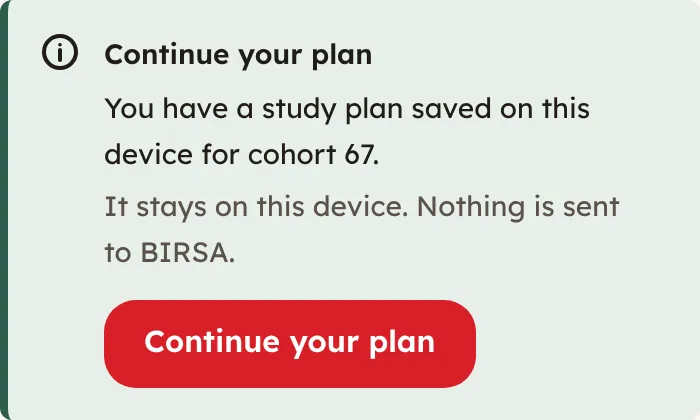
When you come back later, the start page shows "Continue your plan" and takes you to the plan saved on that device.
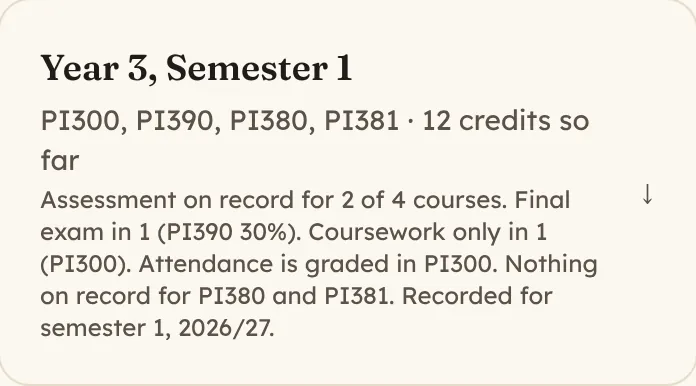
Each term shows how its courses are assessed, taken from the assessment facts BIRSA has on record. The line under "Year 3, Semester 1" below says which courses have a final exam, which are coursework only and which have nothing on record yet.
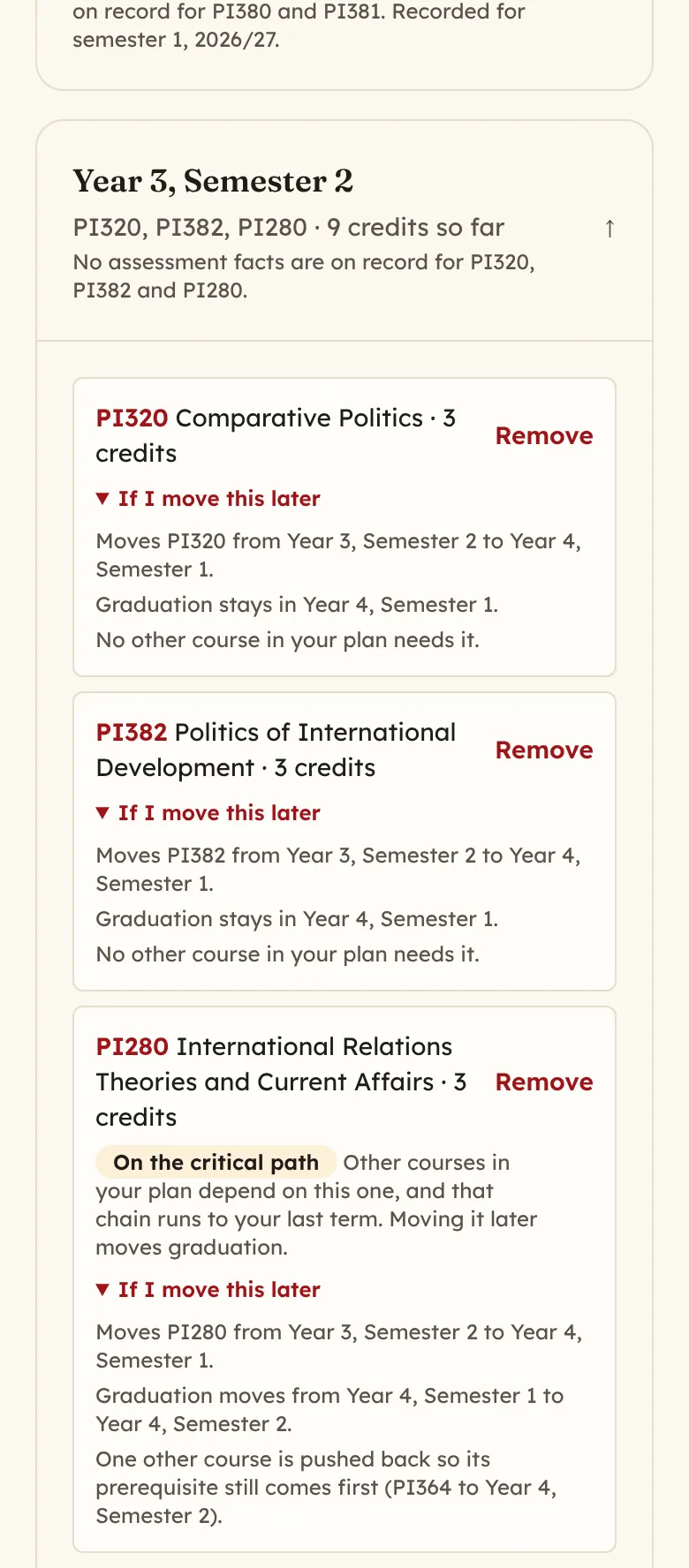
Courses on the critical path carry the mark "On the critical path". Other courses in your plan depend on them, and the chain runs to your last term, so moving them later moves graduation.
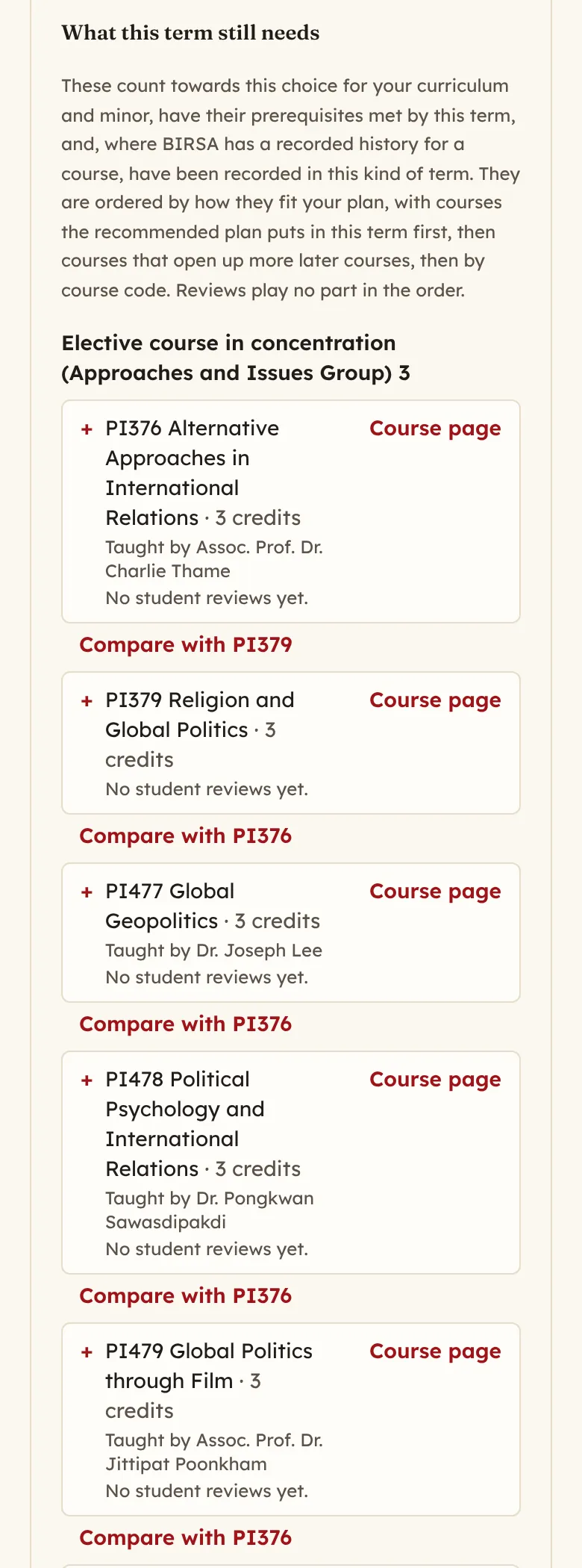
When a term has an open choice, such as a minor elective, "What this term still needs" lists the courses you can take. They count towards that choice for your curriculum and minor, and their prerequisites are met by that term. The list is ordered by fit to your plan, and reviews play no part in the order.
Add a course from its page
- Search the site for the course code, or open it from the catalogue.
- Read the "Your plan" panel. It says what the course counts towards and whether your prerequisites are covered.
- Select "Add to your plan". The panel suggests a term, and you can change it on the plan screen.
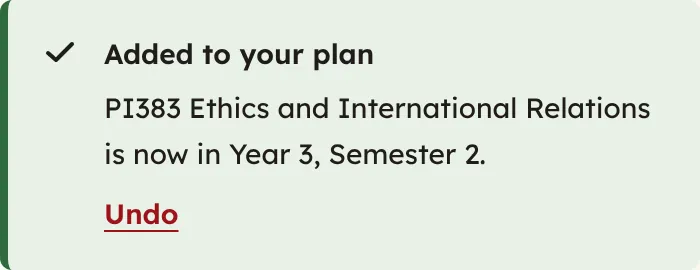
- Check the confirmation "Added to your plan" at the top of the plan screen. Select "Undo" if you did not mean to add it.
Compare two courses
- Open the page of one of the courses.
- Find "Compare" followed by the course code and "with another course". Start typing a code or a name, and pick the second course from the list.
- Select "Compare".
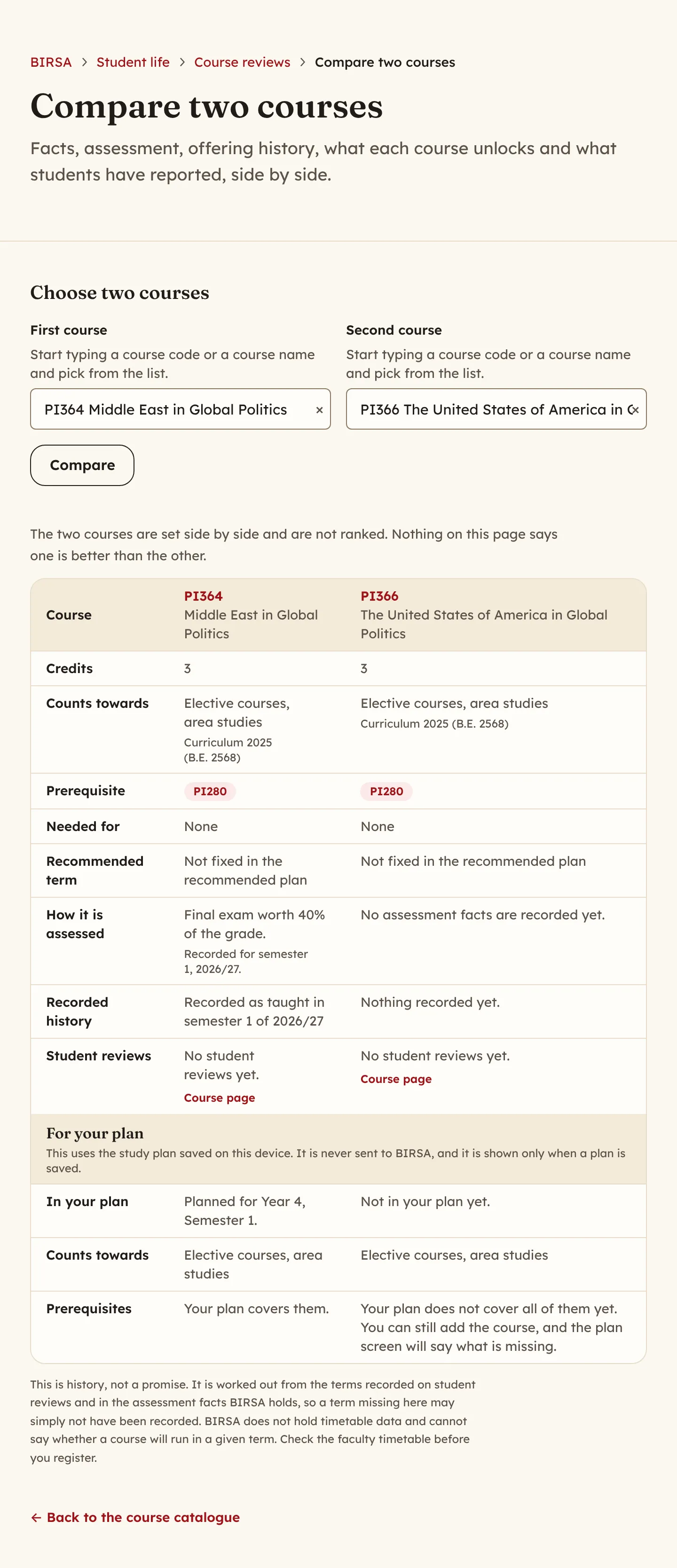
- Read the two courses side by side. The table covers credits, what each counts towards, prerequisites, how each is assessed, the terms recorded and what students have reported. The section "For your plan" appears when a plan is saved.
The page does not rank the two courses. You can also select "Compare with" next to a course in a term's list to start from the plan screen.
Try "If I move this later" and a minor switch
- Open the plan screen and open a term.
- Under a course, select "If I move this later". It says which term the course moves to, whether graduation moves, and which other courses are pushed back so their prerequisites still come first.
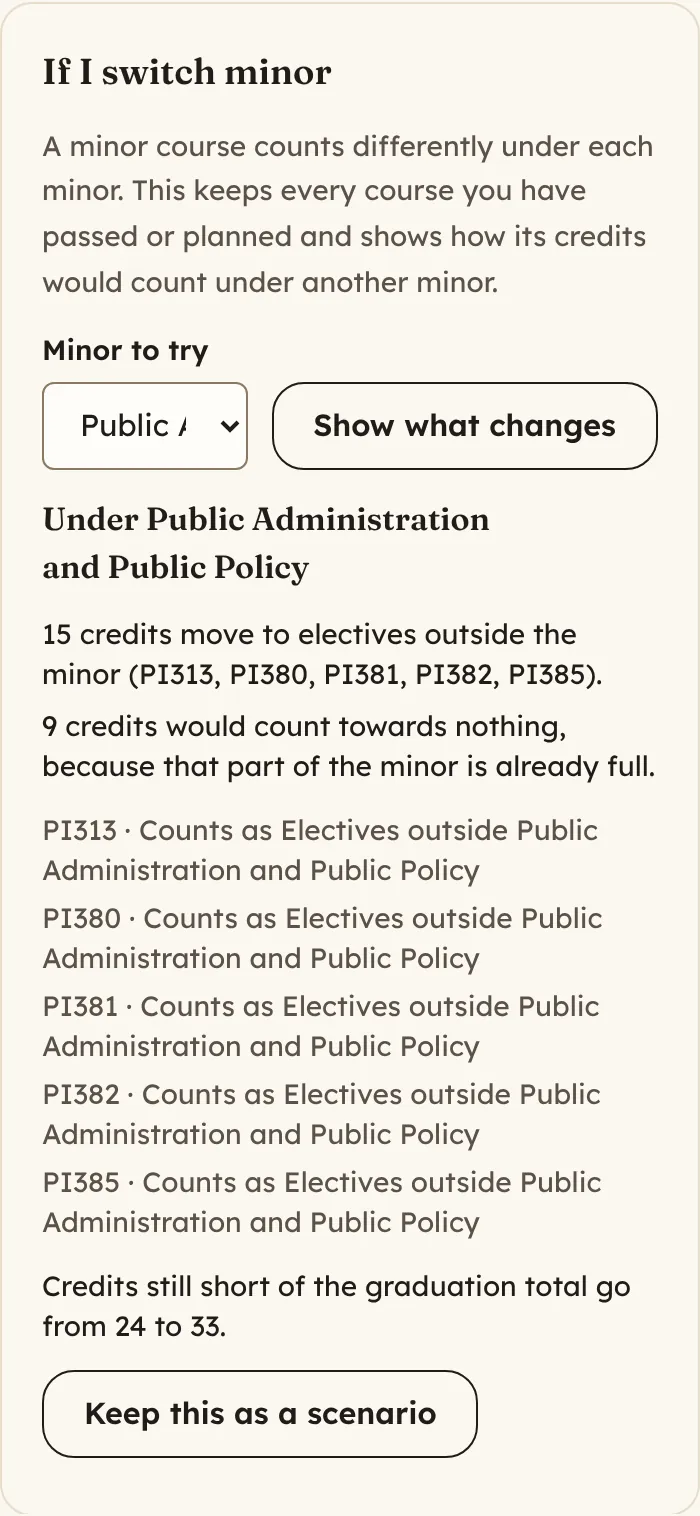
- Scroll to "Scenarios" and find "If I switch minor".
- Under "Minor to try", choose another minor and select "Show what changes". The result shows which credits count the same way, which move to electives outside the minor, and how many credits you are still short.
- Select "Keep this as a scenario" to save it as a named plan on this device. "If I spend a term away" works in the same way for an exchange or a leave.
- Under "Your saved plans", select "Compare with current" to put two plans side by side.
Share your plan or ask the BIR office
- Open the plan screen and scroll to "Share this plan or ask about it".
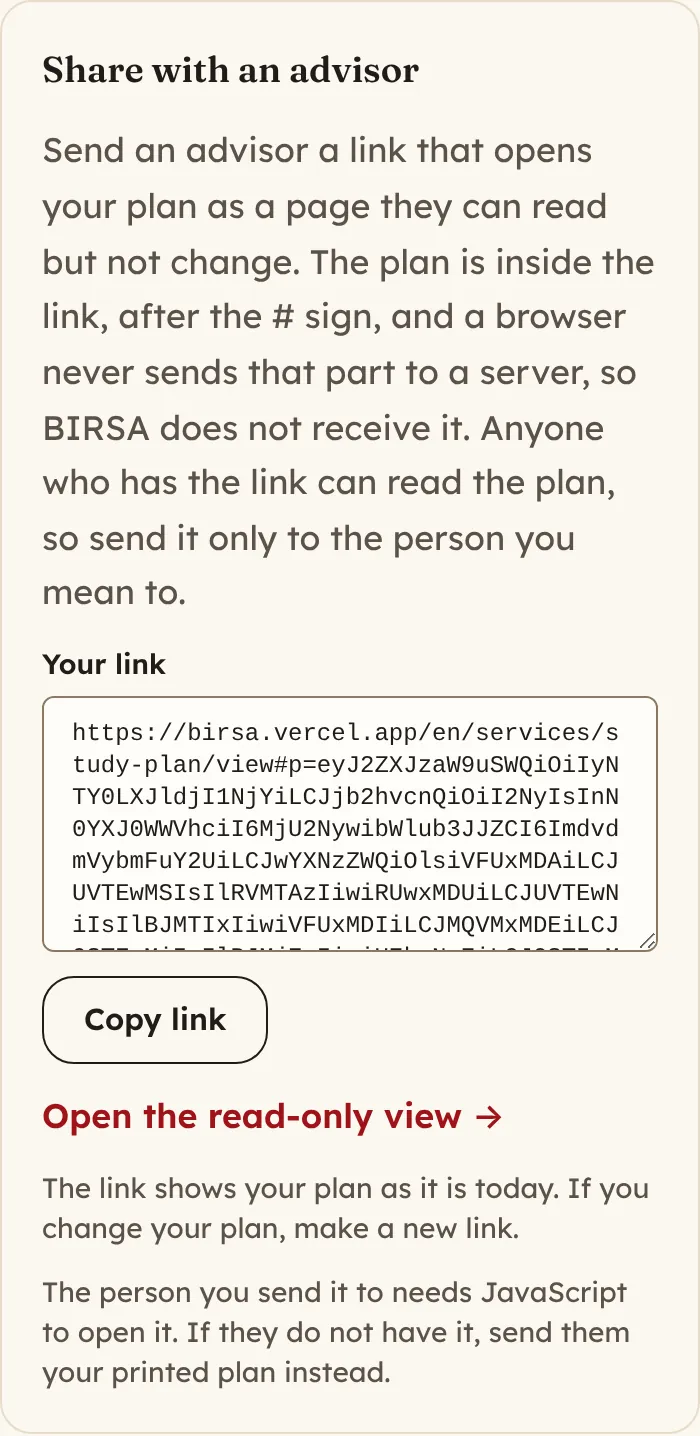
- Under "Share with an advisor", select "Copy link" and send the link to your advisor. The link opens a page they can read but not change.
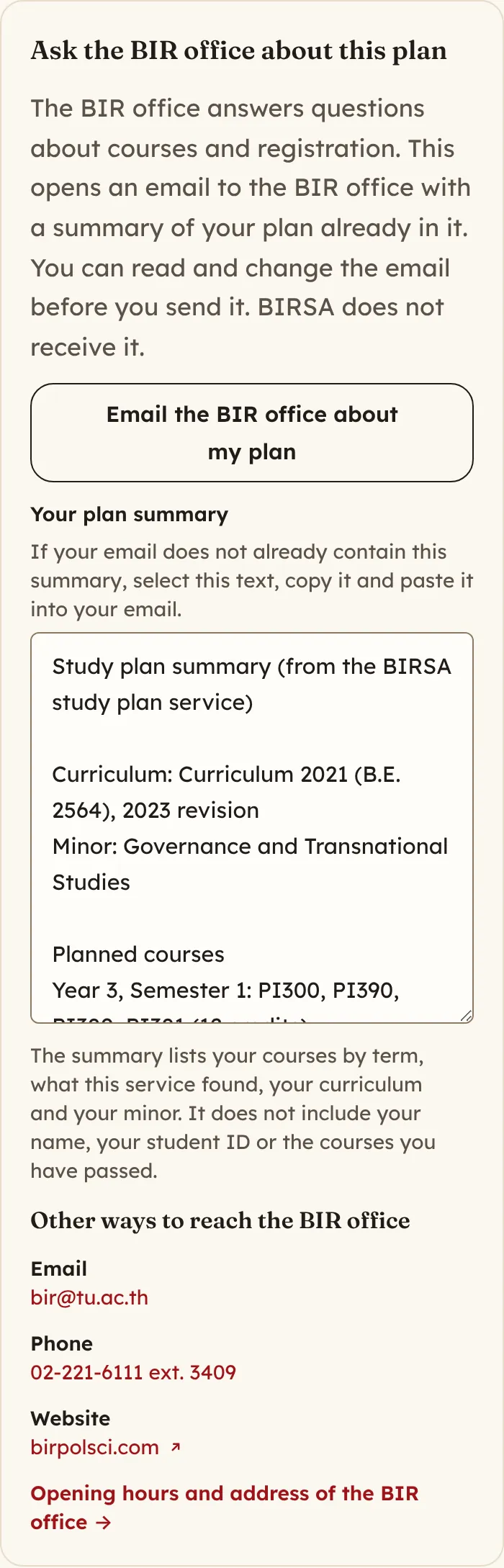
- Under "Ask the BIR office about this plan", select "Email the BIR office about my plan". Your email app opens a message to bir@tu.ac.th with a summary of your plan.
- Read and change the email, then send it. If the summary is missing, copy it from "Your plan summary" and paste it in.
The plan is inside the link, after the # sign. A browser never sends that part to a server, so BIRSA does not receive it. Anyone who has the link can read the plan, so send it only to the person you mean to.
The summary lists your courses by term, what the service found, your curriculum and your minor. It does not include your name, your student ID or the courses you have passed.
Your plan stays in your browser
The plan is stored in your browser on that device. BIRSA does not store it. To clear it, open the plan screen and select "Delete this plan" under "Delete your plan". This also removes any other plans you saved with it.
Who to ask
The BIR office, not BIRSA, announces BIR's registration and add-drop dates. It posts them on birpolsci.com (opens in a new tab) and on the BIR Program Facebook page. The study plan does not check whether a course runs in the term you place it in.
The BIR office also answers academic questions. Email bir@tu.ac.th or call 02-221-6111 ext. 3409.